MCP Endgame? Zapier MCP Connects Everything
MCP Endgame? Zapier MCP Connects Everything
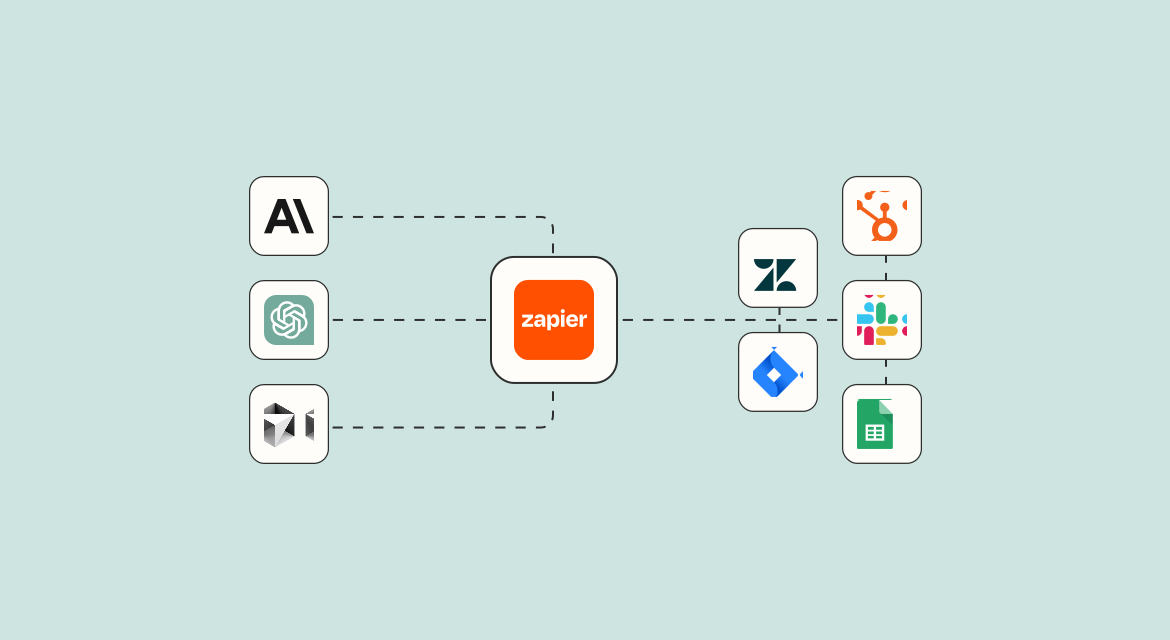
Hello everyone, I'm Very Small Woods. Today we continue our exploration of MCP-related topics, discussing how Zapier implements the ability to "connect everything" through the MCP protocol.
Table of Contents
- Introduction to Zapier and Basic Usage
- Configuring Zapier MCP in Cursor
- Practical Demo: Scheduling Meetings and Sending Notifications via MCP
Introduction to Zapier and Basic Usage
Zapier is an extremely popular automation tool that helps users create automated workflows, connecting thousands of applications and services. Zapier's core philosophy is to create automation commands through "trigger conditions" and "execution actions," implementing a workflow model of "if this condition triggers, then perform that action."
Now, Zapier has released an MCP server, which means we can use MCP clients to help users automate connections between thousands of applications, achieving more efficient work.
Creating Your First Zap Workflow
Let's understand Zapier's basic usage through an example. In this example, we'll create a workflow that automatically sends Google Form responses to a Slack channel.
- Log in to Zapier and enter your personal dashboard
- Select the "Send Google Form responses to Slack channel" template
- Configure Google Forms
- Select an existing form (e.g., "MCP Quick Start Course Reader Feedback")
- Authorize your Google account (if using for the first time)
- Configure Slack
- Select a Slack channel (e.g., "All Woods Camp")
- Set up the message text (e.g., "Are you satisfied with the MCP Quick Start Course?")
- Test and publish the workflow
After completing the configuration, whenever someone submits feedback through the Google Form, the Slack channel will automatically receive a notification message. This is the basic process of how Zapier helps us achieve workflow automation.
Configuring Zapier MCP in Cursor
As the MCP protocol becomes increasingly popular, Zapier has also begun supporting MCP. Let's see how to configure the Zapier MCP server in Cursor.
Getting the MCP Server Link
- Visit the Zapier MCP configuration page
- Obtain your personal MCP server link (be sure to protect the sensitive parts of the link, similar to a key)
- If you're concerned about link exposure, you can click the "Rotate" button to regenerate it
Configuring MCP Tools
- On the Zapier MCP page, click "Edit MCP actions"
- Select the tools you want the MCP server to support (e.g., "Slack Send Direct Message")
- Enable the selected tools
Connecting to Cursor
- On the Zapier MCP page, click "Connect Cursor"
- Copy the configuration information
- Create a global MCP server in Cursor
- Paste the configuration information
- Confirm that the tools have loaded correctly
After completing these steps, Cursor can access various tools and services through the Zapier MCP server.
For more information about MCP, you can refer to my "MCP Quick Start" course series. The text version is published in my knowledge community, and the video version is available on the same-named course on Bilibili.
Practical Demo: Scheduling Meetings and Sending Notifications via MCP
Now, let's demonstrate through a practical case how to use the Zapier MCP server to help users schedule Google meetings and send notification messages via Slack.
Configuring Required Tools
- Return to the Zapier MCP configuration page
- Click "Edit MCP actions"
- Add the "Google Meet Schedule a Meeting" tool
- Add the "Slack Send Direct Message" tool
- Enable these tools
Using MCP Tools in Cursor
- Refresh the MCP tool list in Cursor
- Confirm that the new tools are available
- In Agent mode, express your needs:
I want to schedule a Google meeting with 000encoder@gmail.com at 5 PM tomorrow, and send a Slack notification - Cursor will automatically call the appropriate MCP tools:
- First, it calls "Google Meet Schedule a Meeting" to arrange the meeting
- Then it calls "Slack Send Direct Message" to send the notification
Verifying Results
- Check Google Calendar to confirm the meeting has been scheduled at the specified time
- Check Slack messages to confirm the notification has been sent, including the meeting link and time information
Tip: When scheduling meetings, it's best to provide your time zone information to help the AI locate the time more precisely.
Conclusion
The MCP server provided by Zapier allows us to easily complete MCP server configuration without any complex operations, and control thousands of applications and services through AI assistants. This ability to "connect everything" perhaps represents an important development direction for the MCP ecosystem.
Through Zapier MCP, we can:
- Connect 8000+ applications and 30000+ actions
- No need for complex API integrations
- Transform AI assistants from conversational tools to functional application extensions
- Securely and reliably handle authentication, API limits, and security
Zapier MCP is currently free for individual users, but has usage limits: a maximum of 40 tool calls per hour, 80 per day, and 160 per month. For higher quotas, you can apply for a custom quota.
What are your thoughts on Zapier MCP? Feel free to share your ideas and experiences in the comments!